Classes
Join a class
- Student
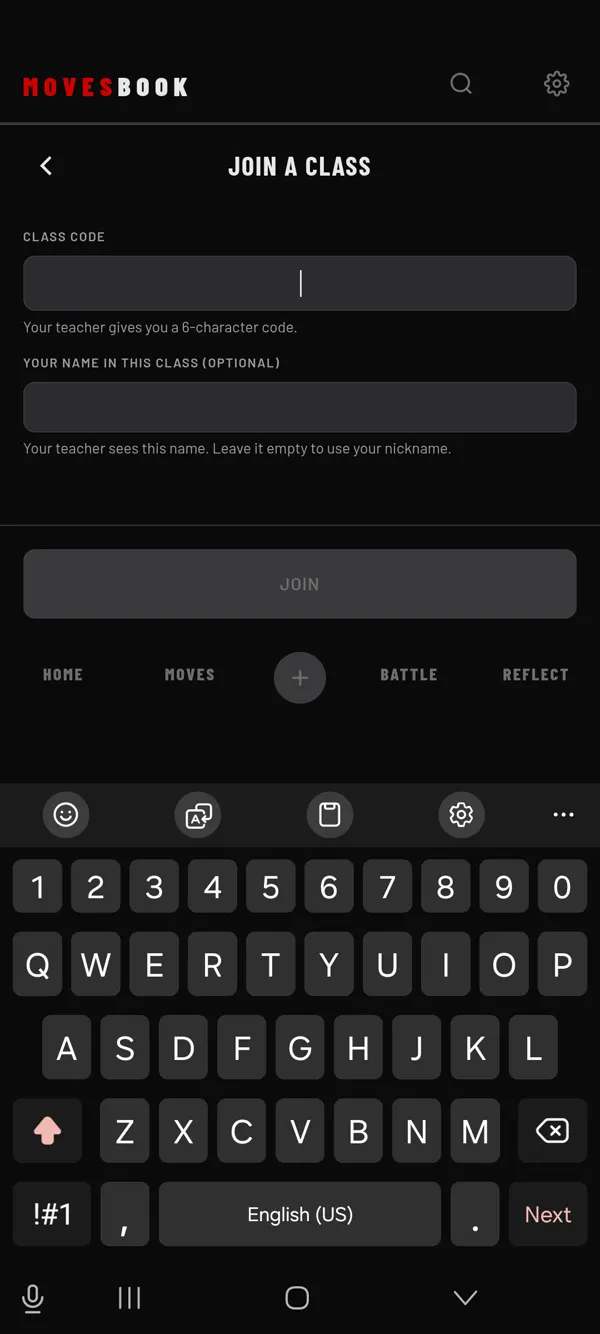
Join your teacher's class with the 6-character code they give you.
Before you start
- Ask your teacher for the class code. It has 6 characters.
- You need to be signed in. Without an account, My classes says "Sign in to join a class." See Create an account or sign in.
- Joining needs a connection.
Steps
- Tap your profile picture at the top right. MY PROFILE opens.
- Under CLASSES, tap My classes.
- Tap JOIN A CLASS.
- Under CLASS CODE, type the code. Capitals and spaces don't matter.
- Optional: under YOUR NAME IN THIS CLASS (OPTIONAL), type the name your teacher will see. Leave it empty to use your nickname.
- Tap JOIN.
The app says "You joined the class."
What you see after
- With one class, My classes opens straight on that class and its homework.
- With two or more classes, you see a list. Each card shows the class name, the teacher's name and how many homeworks are still to do.
To join another class later, tap JOIN A CLASS again. With one class, it is the button at the bottom of the class screen.
Your name in the class
A name is 1 to 30 characters. It can't hold an email address or a link. You can change it later. See Rename yourself, report or leave a class.
If it doesn't work
The app tells you why:
- "That isn't a class code. Check it and try again."
- "No class has this code. Check it with your teacher."
- "This class is closed."
- "This class isn't taking new students right now." Ask your teacher.
- "This account can't join a class." If you are a child, you ask a parent instead. See Join a class as a child.
Classes are not available in some countries yet. There, the join screen says "Classes aren't available in your country yet."
Last checked against app version 2.8.0.