Teaching
Start a class
- Teacher
- Premium
Start your own class, accept the teacher terms and get a join code for your students.
Who can teach
- You need an account and must be signed in.
- Teaching is for adults only.
- You need Premium. The free trial does not count for teaching.
- There is no limit on students. You can run more than one class.
Classes are not available in some countries yet. There, the Teach a class button is not shown.
Steps
- Tap your profile picture at the top right. MY PROFILE opens.
- Under CLASSES, tap Teach a class.
- Under CLASS NAME, type a name. Up to 40 characters. Your students see it.
- Under YOUR NAME FOR STUDENTS, check the name. It starts as your nickname. Don't use an email address or a link.
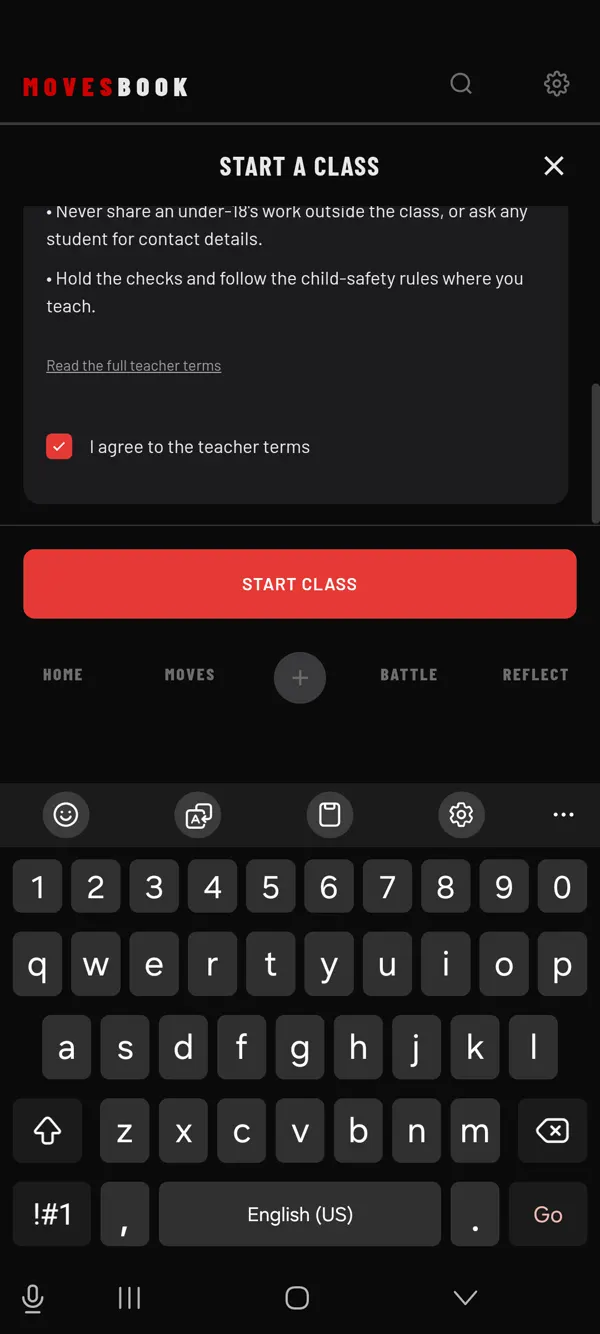
- The first time, a TEACHER TERMS card shows. Read it. Tap Read the full teacher terms to read them all.
- Tick I agree to the teacher terms to accept the teacher terms shown.
- Tap START CLASS.
- CLASS STARTED shows your class name and its join code. Tap DONE.
Starting a class needs a connection.
Without Premium
Tapping START CLASS opens the plans sheet. It says "Teaching a class is part of Premium." Your students do not need Premium to join. See Choose a Premium plan and pricing.
After your first class
The button in your profile is now called Classes I teach. With one class, it opens straight on that class. With two or more, you see a list.
To start another class, open your class and tap START A CLASS. With two or more classes, it is the button at the bottom of the list.
Last checked against app version 2.8.0.