Account, backup & privacy
Restore a backup
- Free
Bring a backup file or folder back into MovesBook, and choose to add it to your data or replace your data.
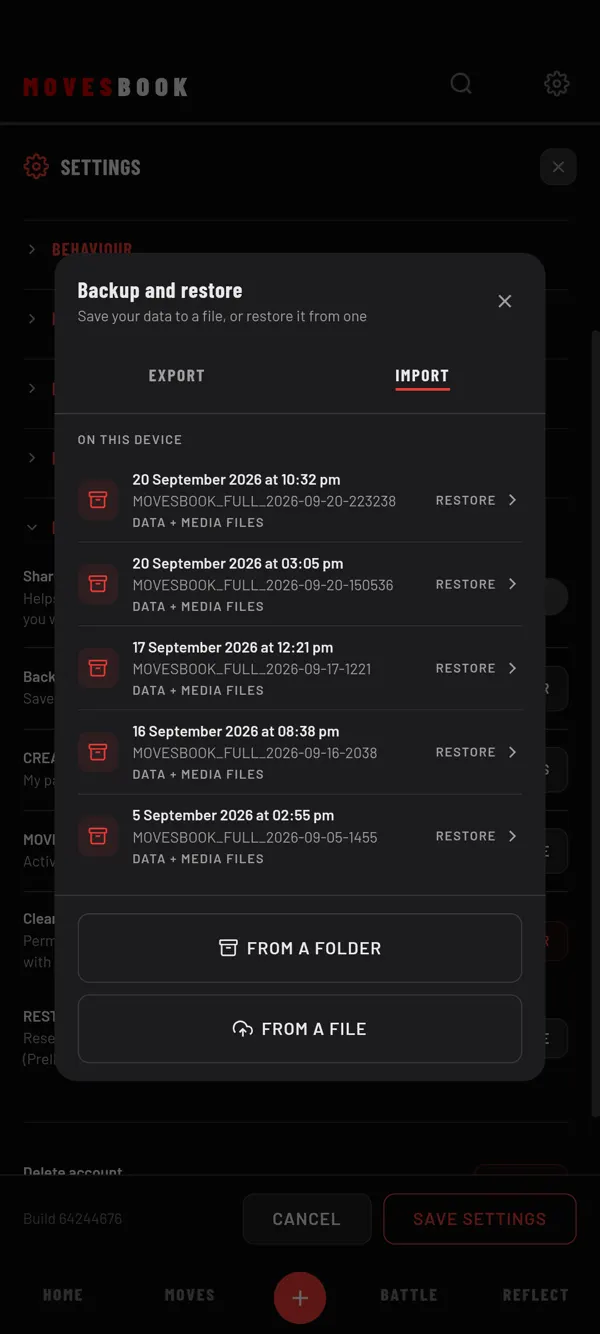
Steps
- Tap the gear icon at the top right.
- Tap DATA & PRIVACY to open it.
- Next to Backup and restore, tap TRANSFER.
- Tap the IMPORT tab.
- Pick your backup (see below).
- Check the date and the list under This file contains:.
- Tap Add to my data or Replace my data.
The app then reloads with your restored data.
Pick your backup
- ON THIS DEVICE (phone app): the last five backups this install of the app saved. Tap one.
- FROM A FILE: pick a MOVESBOOK_DATA file (.json) yourself. This works everywhere, also on the web app.
- FROM A FOLDER (Android only): pick a MOVESBOOK_FULL_ folder. Pick the folder itself, the one that holds data.json. This brings back your videos and photos too.
If the list says No backups saved by this installation, use FROM A FILE.
Add or replace?
- Add to my data: merges the backup into your data. Nothing you have now is deleted or changed. If an item is in both, your current one stays. Your profile and settings are not changed.
- Replace my data: overwrites your data with the backup. Changes made since the backup are lost. Sections that are not in the file stay as they are.
Restoring videos and photos
A backup folder shows Media: with the number of files and their size. After you choose, keep the screen open. RESTORE COMPLETE shows how many files came back. Tap DONE.
If you pick only the data.json inside a folder, the app warns you. Your data comes back, but not the videos and photos. Pick the whole folder instead.
Last checked against app version 2.8.0.