Account, backup & privacy
Back up your MovesBook
- Free
Save your moves, sets and training records to a file, with or without your videos and photos.
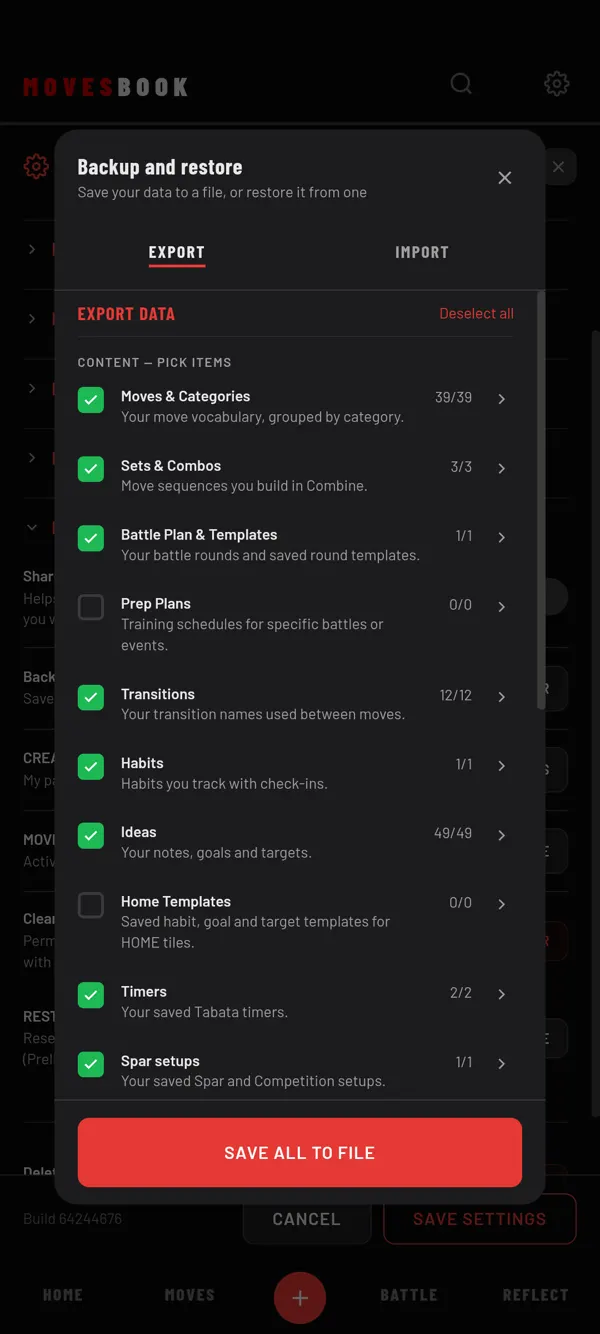
Steps
- Tap the gear icon at the top right. SETTINGS opens.
- Tap DATA & PRIVACY to open it.
- Next to Backup and restore, tap TRANSFER.
- Stay on the EXPORT tab. Everything is ticked at the start.
- To leave something out, untick it. Tap Select all or Deselect all to change everything at once.
- Tap SAVE ALL TO FILE. If you unticked something, the button says SAVE TO FILE.
- If EXPORT TO opens, tap Save as file, or Data + media files to take your videos and photos too.
You can also start from your profile. Tap your avatar at the top, then the Backup and restore row.
What you can pick
- CONTENT — PICK ITEMS: moves and categories, sets, battle plans, prep plans, transitions, habits, ideas, HOME templates, timers, spar setups and rivals. Open a section to pick single items.
- RECORDS — ALL OR NOTHING: training logs, battles, calendar, pre-session notes, injuries, freestyle, spar list, HOME layout, and profile and settings.
Creator-pack moves are never put in a backup. You reinstall packs from Settings instead.
Where the file goes
- Android: in the phone's Documents folder. The app shows Backup saved and the path.
- iPhone: inside MovesBook on the phone. Find it in the Files app, under On My iPhone → MovesBook.
- Web app: in your browser's download folder.
On the phone app, tap SAVE A COPY on the Backup saved screen. Send the file to your cloud drive or to yourself.
Back up your videos and photos
A normal file holds your data, not your videos, photos or audio. On the phone app, Data + media files appears when your choice uses files from the phone. It shows how many files and how big they are.
It saves a folder called MOVESBOOK_FULL_ plus the date. Keep the screen open until FULL BACKUP SAVED appears.
Last checked against app version 2.8.0.