Video
Add a video link to a move
- Free
Put a YouTube, Vimeo or other video link on a move or a set, and watch it inside the app.
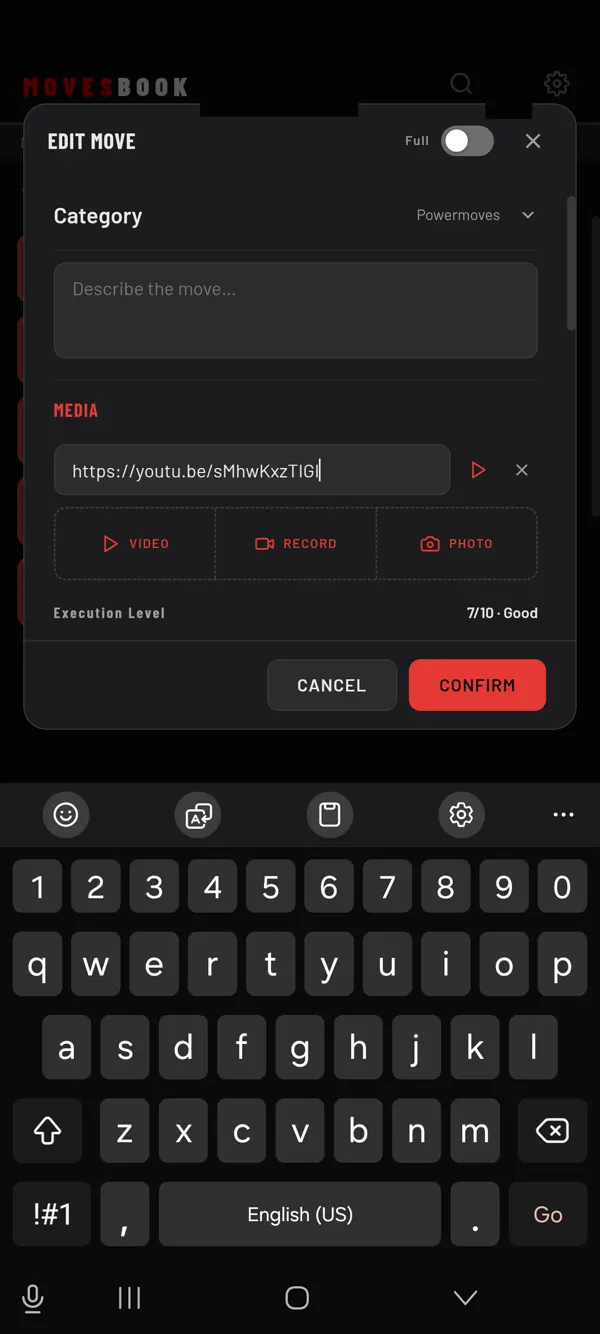
Steps
- Tap MOVES, then VOCABULARY.
- Tap a move. EDIT MOVE opens.
- Under MEDIA, tap LINK.
- Paste the web address into the Video URL box.
- Tap CONFIRM.
For a set, tap MOVES, then SETS, then the set. Tap LINK under MEDIA, paste the address and tap SAVE.
Watch the link
In the move or set, the link row shows a button at its end:
- ▶ (Play video): the video plays in a popup inside MovesBook.
- ↗ (Open link): the link opens in your browser.
These links play inside the app:
- YouTube links, including Shorts.
- Vimeo links.
- Direct links to a video file (.mp4, .mov, .webm or .m4v) that start with https.
Every other link opens in your browser. This includes TikTok, Instagram, Facebook and Dailymotion.
The popup never starts by itself. Tap play in it. Under the video there is always Open link, in case the owner blocks playing it in other apps.
You can also play the link from your library. Tap the media button on the move's row or tile.
One link each
A move or a set holds one link. The LINK button goes away while a link is there. Tap × on the link row to remove it, and LINK comes back.
Last checked against app version 2.8.0.