Training
Record a timed Drill session
- Free
Pick a move, tap the screen for every rep while a timer runs, then save the session and add how it felt.
Steps
- Tap MOVES, then DRILL.
- Tap DRILL MOVES.
- Tap a move in the list to pick it. Use Search moves… to find it faster.
- Tap REPS. The timer starts.
- Tap anywhere in the big area after each rep.
- Tap DONE — SAVE 12 REPS when you finish.
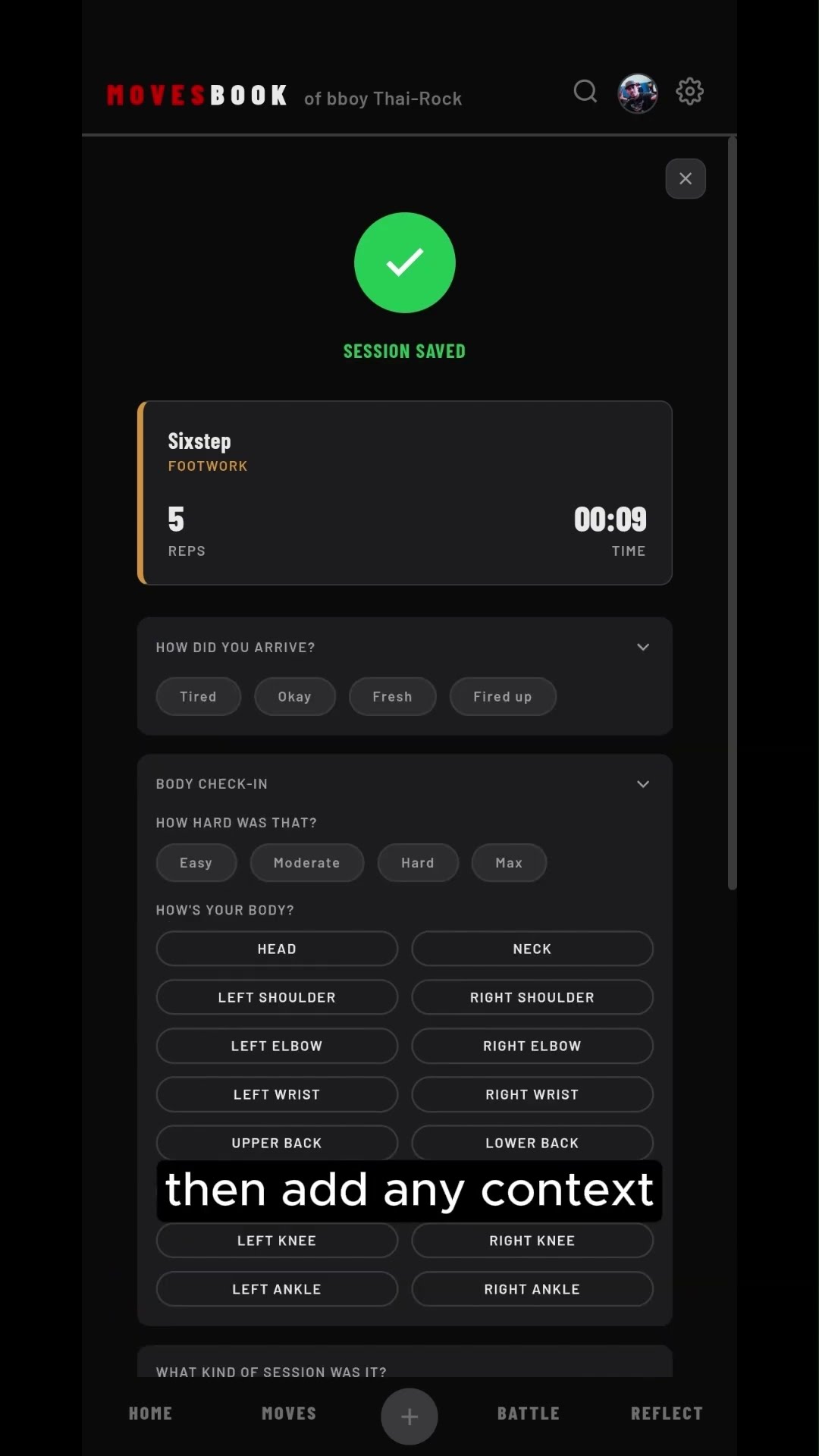
You see SESSION SAVED with your reps and TIME. The session is already saved.
Fix the count
- − takes off one rep.
- The circle arrow resets. Tap it, then tap again on TAP AGAIN TO RESET. This also sets the timer back to 0.
- TYPE A NUMBER adds 1 to 999 reps at once. They count the same as taps.
Add how it went (optional)
On SESSION SAVED you can fill in:
- HOW DID YOU ARRIVE?: TIRED, OKAY, FRESH or FIRED UP.
- BODY CHECK-IN: HOW HARD WAS THAT? and a tap on each body part (GOOD, TIGHT, PAIN).
- WHAT KIND OF SESSION WAS IT?: pick a type, or add your own.
- TRAINING LOG: a few words on how the move feels.
- MY ANSWERS: three short questions, like "What went well today?"
These are added when you leave the screen. Then tap GO AGAIN — [MOVE], PICK DIFFERENT MOVE or SESSION HISTORY.
Drill a whole set
In the list, tap a set under SETS. Counting starts at once. Each tap is one run of the set. Every move in the set gets the full count.
Delete a session
Open SESSION HISTORY and tap the bin. You see "Delete permanently?". This also takes the reps off your move totals. It cannot be undone.
Last checked against app version 2.8.0.