Training
Drill the moves slipping away
- Free
See which moves and sets you have not trained for a while, and start a drill on them in one tap.
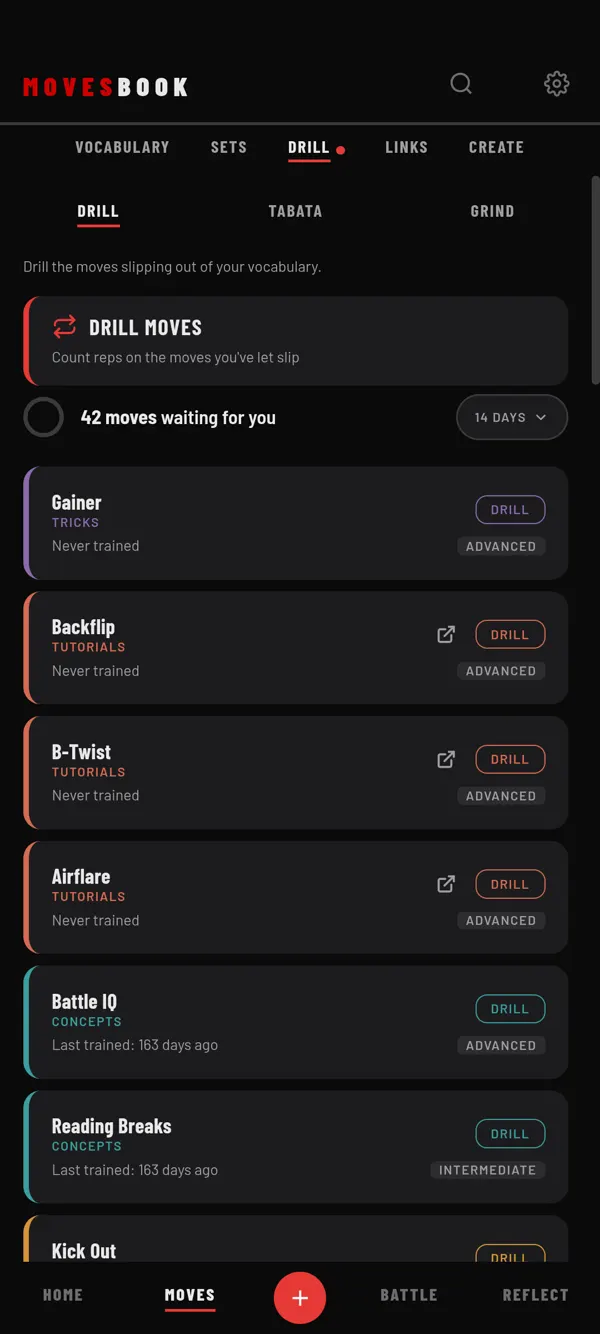
Steps
- Tap MOVES, then DRILL.
- Make sure DRILL is picked in the bar under it (not TABATA or GRIND).
- Read the line under the ring, for example "5 moves waiting for you".
- Tap the pill on the right (it shows 14 DAYS) to choose 7 DAYS, 14 DAYS, 30 DAYS or CUSTOM.
- Find a move in the list. The oldest ones are at the top.
- Tap DRILL on its row.
- Tap REPS to start counting. See Record a timed Drill session.
A red dot on the DRILL tab means some moves are waiting.
What the list shows
- Each row shows "Last trained: 12 days ago", or "Never trained".
- Never-trained moves come first.
- Sets are listed too, with the tag SET. A set counts as trained on the last day you trained any of its moves.
- A move with a video link has a play button.
- The ring shows how much of your library is fresh.
What counts as training
The list reads the last day you logged reps on a move. Drill, Tabata, Count taps, Spar and Grind all count.
How difficulty changes the days
The day filter is stretched by the move's difficulty:
- Easy moves wait 1.5 times longer (21 days at 14).
- Advanced moves show up sooner (10 days at 14).
- Other moves use the number you picked.
This does not apply to sets. See Set how hard a move is.
The list is empty
You see "All caught up! No moves are stale." when nothing is over the limit. You also see it when Settings › Execution Decay is set to Off. Moves in a category with Execution Decay turned off never show here.
Last checked against app version 2.8.0.