Training
Build and run a workout
- Free
Build a workout once from steps like exercises, drills and timers, then run it step by step.
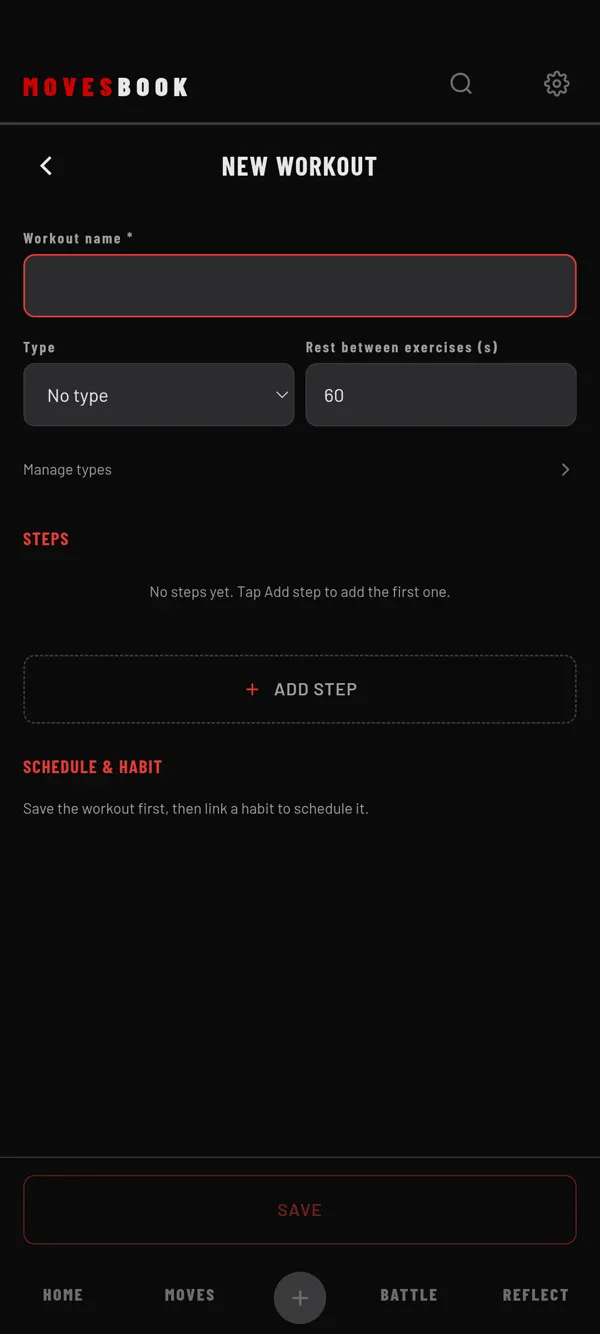
Build a workout
- On HOME, tap WORKOUTS. It is under the Log Today tile.
- Tap NEW WORKOUT.
- Type a name under Workout name *.
- Optional: pick a Type, like Breaking, Gym, Calisthenics or Stretch.
- Tap ADD STEP.
- Pick a Step type and fill it in. Tap DONE.
- Add more steps the same way.
- Tap SAVE.
Step types
- Exercise: sets, and reps, time or weight × reps. You can set the rest between sets.
- Timer: seconds and rounds.
- Move, Drill, Spar, Flow: a training step, with a move if you want one.
- Note: text to read during the run.
Rest between exercises (s) sets the rest after each step. It starts at 60 seconds.
Run a workout
- On HOME, tap WORKOUTS.
- Tap START on a workout. It shows once the workout has a step.
- Follow the screen. It shows "Step 1 of 5", the step and a timer or rep count.
- Tap SET DONE or MARK DONE when you finish. During a rest, tap SKIP REST to go on.
- On WORKOUT DONE, tap SAVE.
Timed parts move on by themselves. The screen stays on during a run.
At the bottom you also have PAUSE, CHANGE REPS (or CHANGE TIME) for this set only, and SKIP. On a Drill, Spar or Flow step, OPEN DRILL, OPEN SPAR or OPEN FLOW opens that tool.
Put it on your days
Save the workout first. Then open it again, and under SCHEDULE & HABIT tap CREATE A LINKED HABIT. The habit decides the days. On those days the workout shows under TODAY. Saving a run ticks the habit for that day. See Create a habit.
Last checked against app version 2.8.0.