Your day on HOME
Create a habit
- Free
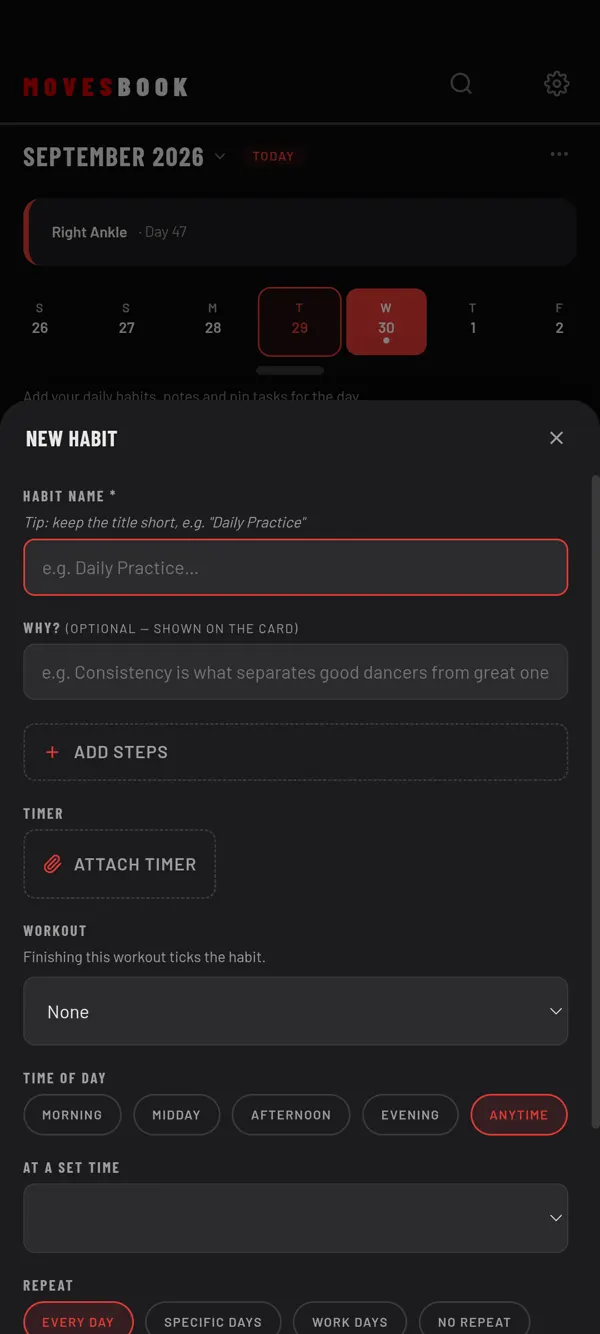
Add something you want to do on a regular basis, with an optional checklist, timer or workout, and tick it off on HOME.
Steps
- On HOME, tap +.
- Tap Add Habit. The NEW HABIT sheet opens.
- Type a name under HABIT NAME. This is the only field you must fill in.
- To make a checklist, tap ADD STEPS and type the first step. Tap ADD STEP for more.
- Under TIME OF DAY, pick MORNING, MIDDAY, AFTERNOON, EVENING or ANYTIME. You can pick more than one.
- Under REPEAT, pick EVERY DAY, SPECIFIC DAYS, WORK DAYS (Monday to Friday) or NO REPEAT. For SPECIFIC DAYS, tap the days you want.
- Tap SAVE.
The habit shows under TODAY on every day its repeat matches.
Add more to a habit
- A photo, video or link on a step. Tap the attach button next to the step. Web link works everywhere. On the phone app you also get Attach photo from phone and Attach video from phone.
- A timer. Under TIMER, tap ATTACH TIMER and pick a saved timer, or make a NEW TIMER. On the tile, tap the timer's name to open it.
- A workout. Under WORKOUT, pick one of your workouts or + Create new workout. Finishing the workout ticks the habit. The tile gets a START button.
- A time. AT A SET TIME adds a clock time to the tile.
Tick it off
- A habit without steps has a box on its tile. Tap it.
- A checklist has a box for each step. The habit counts as done when every step is ticked. The tile shows your progress, for example 2/3.
- You can tick any day you pick on HOME, not just today.
A done habit is crossed out on its tile and listed under HABITS for that day.
Change it later
- On the tile, tap ⋯ › Edit to open EDIT HABIT.
- A habit set to NO REPEAT shows on no day. To find it, tap ⋯ at the top of HOME, then Manage habits.
Last checked against app version 2.8.0.