Your day on HOME
Plan your day on HOME
- Free
Pick a day on HOME, see what is planned for it, and keep your habits, notes and goals in order.
Steps
- Tap HOME in the bottom bar. HOME opens on today.
- To see another day, tap it in the row of days near the top.
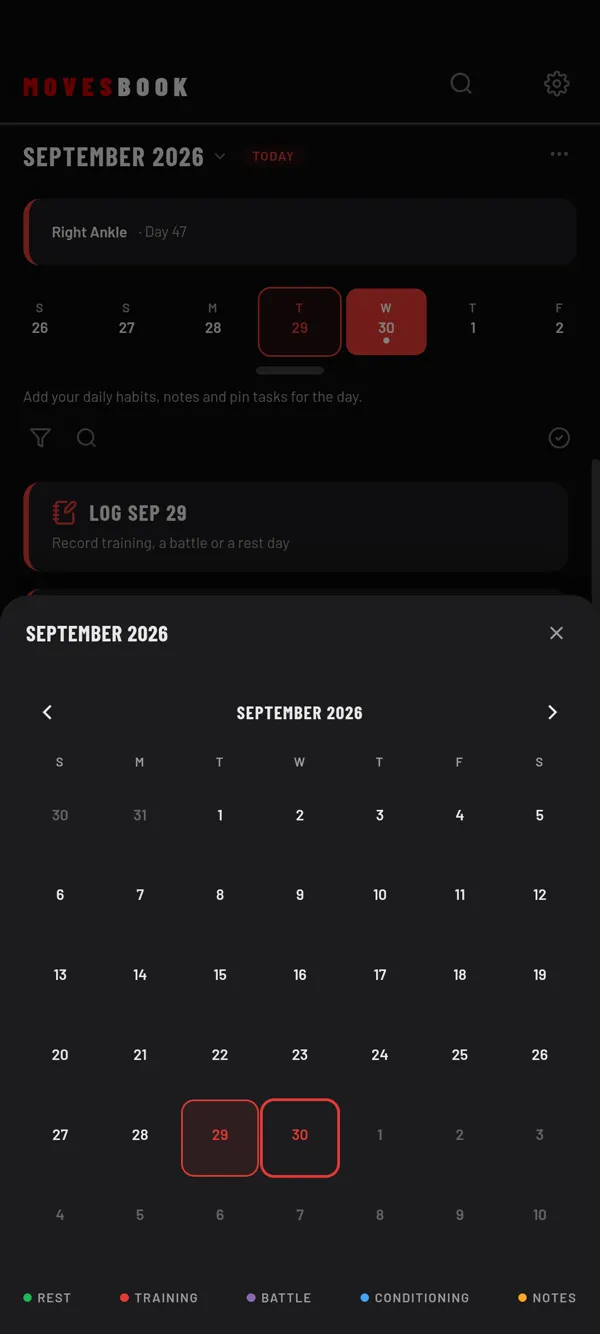
- To jump further, tap the month name at the top, for example SEPTEMBER 2026. Then tap a day in the calendar.
- To go back to today, tap TODAY next to the month name.
- Tap + to add a habit, a note, a goal or a target to the day.
What you see on HOME
- The LOG TODAY tile. On a past day it reads LOG SEP 28. On a future day it reads PLAN SEP 28. See Log today's training.
- BEFORE YOU TRAIN. Moves to try and notes for the day. See Check in before you train.
- Your tiles, in three lists. TODAY holds that day's habits, your move updates and notes dated for that day. NOTES holds notes you pinned. GOALS holds your goals and targets.
HOME is for planning. It does not list the sessions or training you already did. When a day has some, tap See this day in My Book to see them.
The month calendar shows coloured dots under each day: Rest, Training, Battle, Conditioning and Notes.
Put your tiles in order
- Press and hold a tile for a moment. A coloured ring appears around it.
- Drag it up or down.
- Tap outside the list to finish.
A tile only moves inside its own list. A list needs two tiles or more.
Find a tile on a busy day
Three small icons appear above your tiles:
- Funnel: opens Filter sections, where you hide TODAY, NOTES or GOALS.
- Magnifier: opens a Search… box that finds tiles by name.
- Tick in a circle: lets you tick several tiles, then archive or delete them together. Only notes and goals can be archived.
Last checked against app version 2.8.0.