Battles
Plan battle rounds and entries
- Free
Build your battle plan round by round. Put moves, sets and transitions in each entry, and read the Round Arc.
Steps
- Tap BATTLE. It opens on PLAN.
- Tap +. NEW ROUND opens.
- Type a ROUND NAME (up to 30 characters).
- Pick a colour.
- Set NUMBER OF ENTRIES with − and + (1 to 32).
- Tap CREATE ROUND. The round goes to the end of the list.
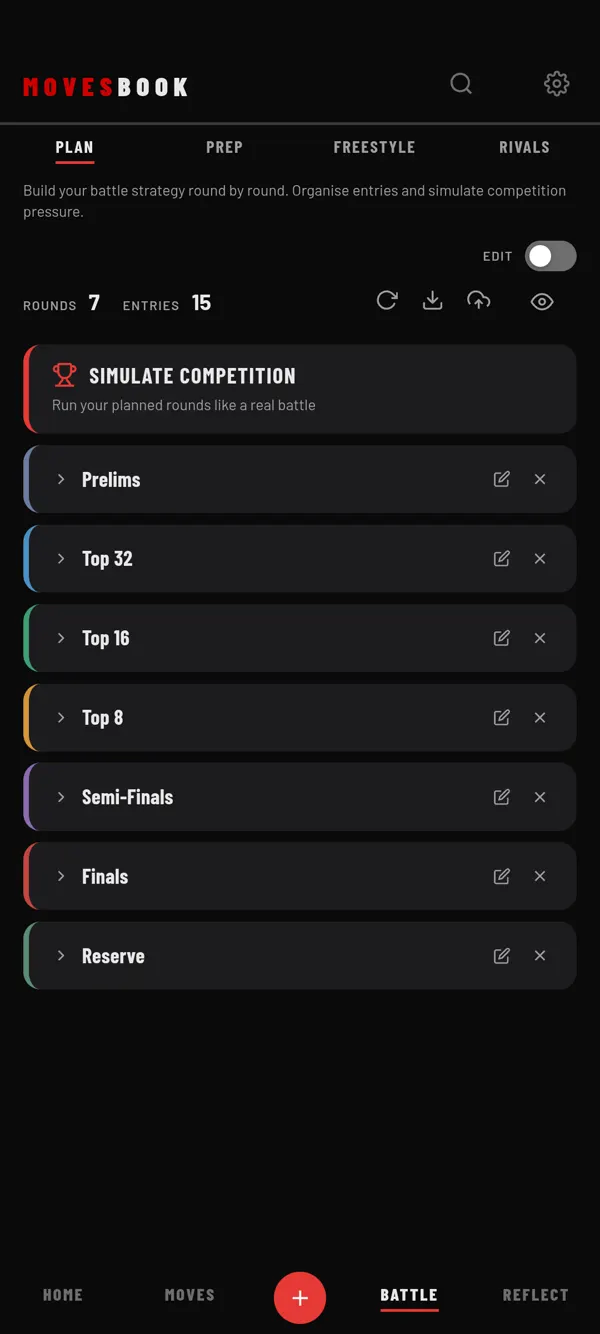
A new account starts with Prelims, Top 32, Top 16, Top 8, Semi-Finals, Finals and Reserve.
Fill an entry
- Tap a round card to open it.
- Tap an entry.
- Tap ADD MOVES.
- Pick moves, sets or transitions, then tap the button that reads, for example, ADD 3 SELECTED.
- Tap DONE.
- Tap SAVE ROUND.
Change a round
- Open a round to rename an entry (pencil), delete it (✕) or tap + ADD ENTRY.
- Tap ✕ on a round card to delete the round and its entries.
- Long-press a round card to reorder, then drag it.
- The colour can only be picked when you create the round.
Read the Round Arc
Every move has a tension level: Flow, Build, Hit or Peak. A move with no TENSION ROLE counts as Build. Open an entry and tap ROUND ARC to see the shape of that entry. With 3 or more points, a line says what the arc does, for example "Ends on a high. Strong closer."
In the entry, tap a move's four dots to change its level for this entry only. Hold them to go back to the move's own role.
To hide the arcs, open Settings, then BEHAVIOUR, and turn off Show dynamics bar.
Templates
- Upload icon: SAVE BATTLE TEMPLATE. Type a TEMPLATE NAME and tap SAVE TEMPLATE. It keeps all rounds and entries.
- Download icon: LOAD BATTLE TEMPLATE. Tap a template, then YES, LOAD TEMPLATE.
- Refresh icon: RESTORE DEFAULT ROUNDS, then YES, RESTORE.
Last checked against app version 2.8.0.