Your moves
Add and use traits
Make your own labels, like spin direction or style, tag your moves with them and filter your library by them.
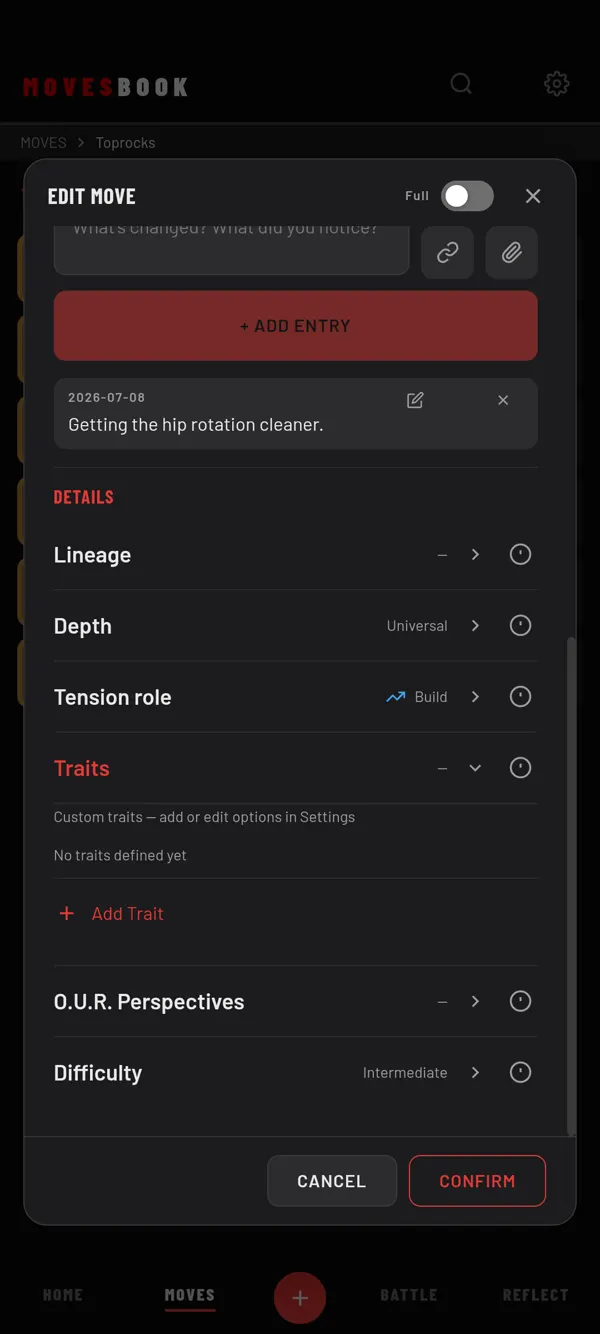
A trait is a label you make yourself, with a list of values. For example: Spin, with the values clockwise and counter-clockwise.
Make a trait
- Open Settings (the gear, top right) and tap MOVES.
- Under CUSTOM TRAITS, tap + ADD TRAIT.
- Type a Trait Name, for example "Spin".
- Type a value in the box under Trait and tap +. Add as many as you need, up to 20.
- Tap CONFIRM.
Each trait needs a name no other trait has, and at least one value.
Tag a move
- Tap a move to open EDIT MOVE.
- Scroll to DETAILS and tap the Traits row. In Simple mode, switch to Full first.
- Tick the values that fit. A move can carry several values of the same trait.
- Tap CONFIRM.
At the end of the Traits row you can also tap Add Trait:
- Tap an existing trait under "Choose a trait", tick its values, and tap CONFIRM. They are added to this move. You can type a new value there too.
- Or tap + ADD NEW TRAIT to make a new one. It is added to your list, but not ticked yet. Tick its values in the Traits row.
Filter by a trait
- In ALL MOVES: tap ⋯ (Tools) › Filter. Each trait has its own group. Tick values, then tap DONE.
- In CATEGORIES, TILES or TREE VIEW: tap ⋯ (Tools) › Filter. The FILTER BY TRAITS panel opens. Tap the values.
- Inside a category: tap the filter icon at the top for the same panel.
Change or delete a trait
In Settings › MOVES › CUSTOM TRAITS, tap the pencil to edit a trait, or the bin to delete it.
Last checked against app version 2.8.0.