Your moves
Bulk import your moves
Add many moves at once, from a pasted list of names or, in the phone app, from videos on your phone.
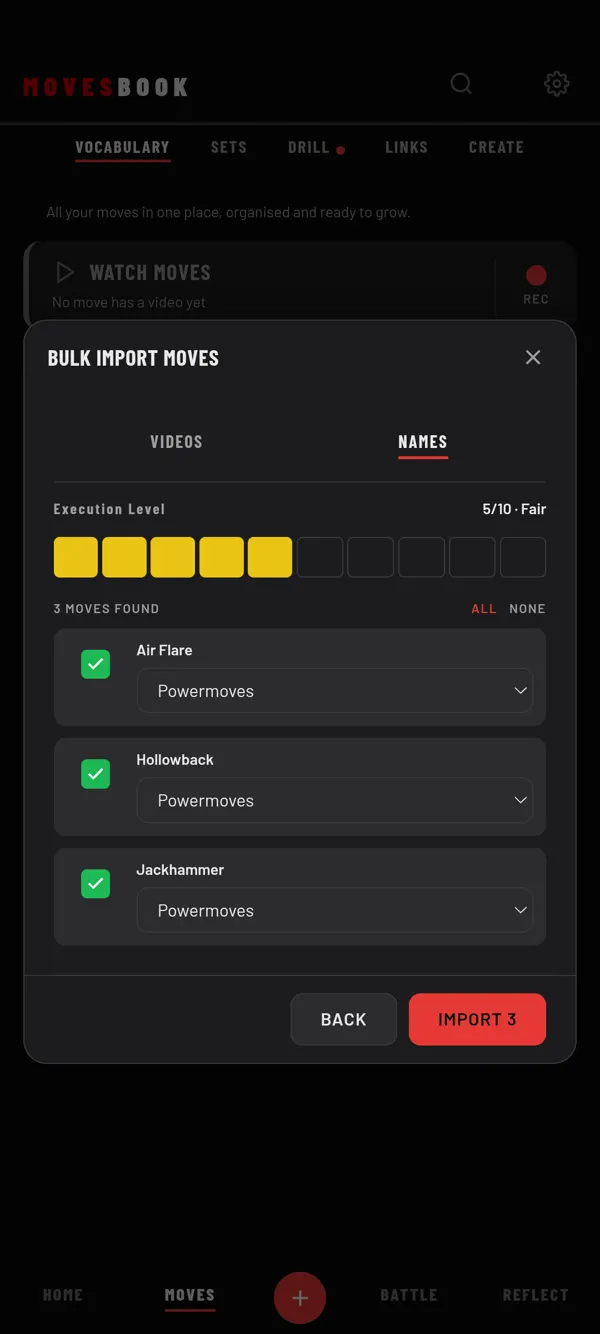
Import a list of names
- Tap MOVES, then VOCABULARY. Make sure no category is open.
- Tap +, then Bulk Import. BULK IMPORT MOVES opens. In the phone app, tap NAMES.
- Pick a category under IMPORT TO CATEGORY.
- Paste your list: one move per line, or separated by commas.
- Tap FIND MOVES.
- Check the list. Untick any move you don't want, or change its category.
- Set the Execution Level for all of them (it starts at 5/10).
- Tap IMPORT 12 (the number matches your list).
If a name is already in your library, the row says so. SKIP IT is chosen at the start. Tap CREATE A NEW MOVE to add it anyway.
Import videos (phone app)
Each video becomes a move.
- Open BULK IMPORT MOVES as above. VIDEOS is open.
- Tap PICK VIDEOS and choose videos from your phone. Tap ADD MORE VIDEOS for another batch.
- Give each row a move name. Names that look like camera file names are flagged.
- Pick a category per row, or use CATEGORY FOR TICKED ROWS for all at once.
- Set the Execution Level for all of them.
- Tap IMPORT 8 (the number matches the ticked rows).
If a name matches a move you have, ADD VIDEO TO THAT MOVE is chosen at the start. Tap CREATE A NEW MOVE for a separate move.
Keep MovesBook open while it copies. Tap STOP to end after the current video. At the end you see how many moves were created, how many videos were added, and any that could not be copied.
Last checked against app version 2.8.0.