Your moves
Delete a move and get it back
Send moves to the Bin, undo a delete, and restore a move from Settings within 15 days.
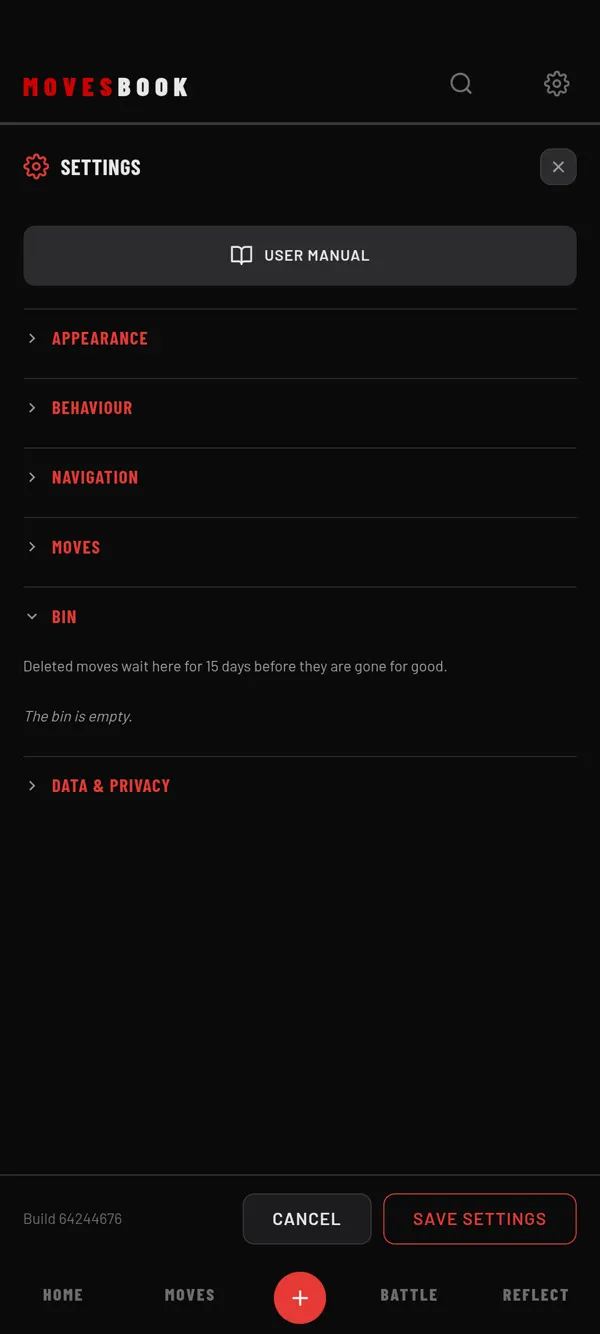
Deleted moves go to the Bin first. They wait there for 15 days, with their videos, journal and everything else.
Delete one move (touch screen)
- Open a category, ALL MOVES or your search results.
- Swipe the move to the left.
- Tap the red bin.
- If the app asks, tap MOVE TO BIN.
Delete several moves
- In ALL MOVES, tap ⋯ (Tools) › Select moves. Inside a category, tap the tick icon at the top.
- Tap the moves to tick them.
- Tap the bin with the number.
- Tap MOVE TO BIN.
This is also the way to delete moves with a mouse.
Undo straight away
After a delete, a message appears at the top with UNDO. Tap it within a few seconds and the move goes back to its place.
Restore from the Bin
- Open Settings (the gear, top right).
- Tap BIN. The number next to it shows how many moves are waiting.
- Find the move. It shows its category and the days left.
- Tap RESTORE.
The move goes back into its category. If you deleted the category too, it comes back.
Delete for good
- DELETE NOW on one move, then CONFIRM.
- EMPTY BIN for all of them, then CONFIRM.
After 15 days the app does this by itself. The move's videos and photos on your phone are deleted then.
Clear all moves
- Open Settings (the gear, top right).
- Tap DATA & PRIVACY.
- Find Clear All Moves and tap CLEAR.
- Tap CONFIRM, or CANCEL to stop.
This deletes every move and every set, with their photos and videos. Moves already in the Bin go too. Settings then closes.
Last checked against app version 2.8.0.